

How to Reopen Closed Tabs in Chrome (Step-by-Step Guide)
Accidentally closed an important tab? You’re not alone. Whether you clicked the wrong button, restarted Chrome, or your browser crashed, losing tabs happens to everyone.
The good news: Chrome includes several ways to reopen closed tabs, and in most cases, you can restore them in seconds.
This guide covers every reliable way to reopen closed tabs in Chrome, from quick keyboard shortcuts to advanced recovery methods that help prevent tab loss in the future.
Quick Answer: Reopen a Closed Tab Instantly
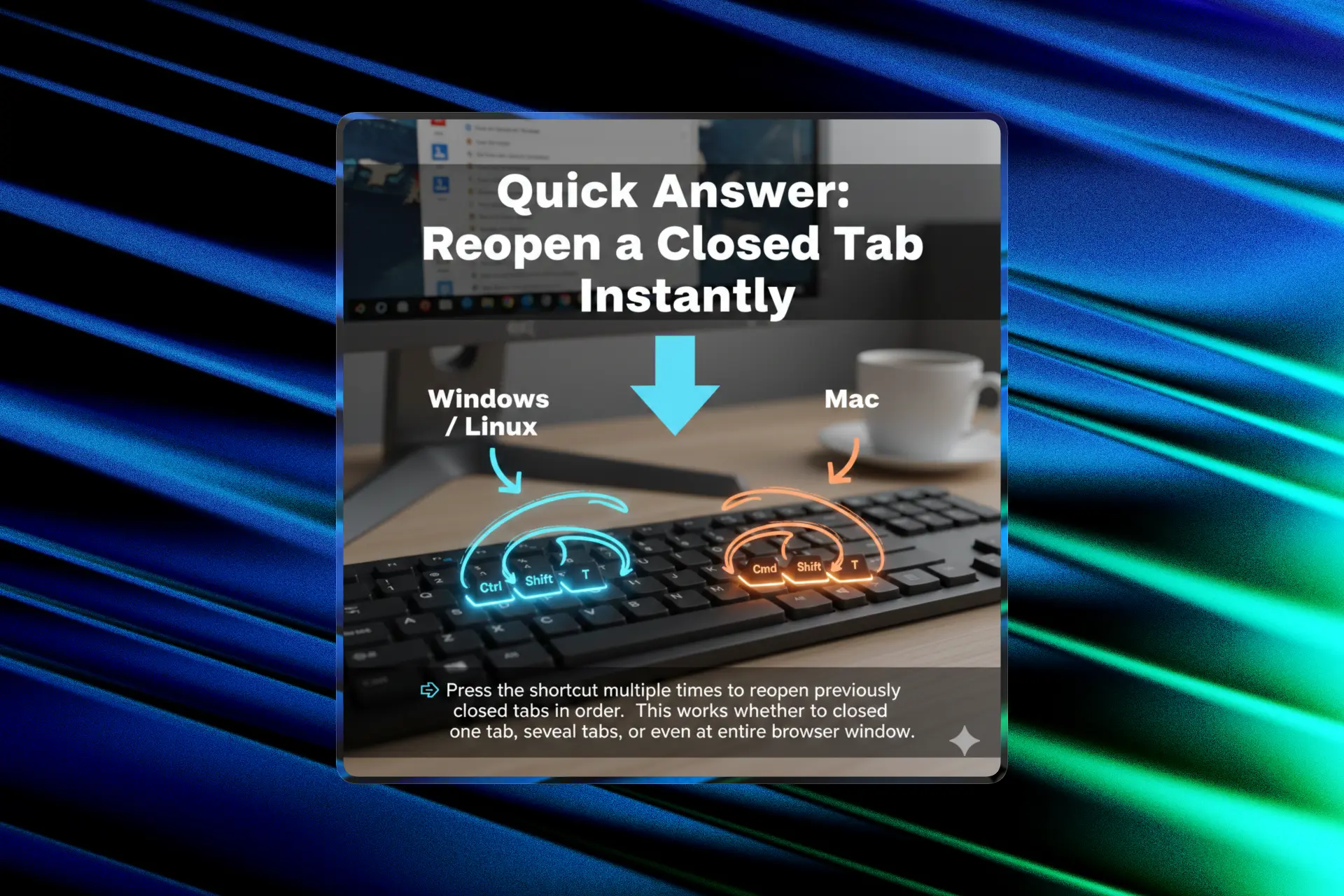
The fastest way to reopen a closed tab is using a keyboard shortcut:
Windows / Linux
Ctrl + Shift + T
Mac
Cmd + Shift + T
👉 Press the shortcut multiple times to reopen previously closed tabs in order.
This works whether you closed one tab, several tabs, or even an entire browser window.
Method 1: Reopen Closed Tabs from the Chrome Menu
If you prefer using the mouse:
- Click the three-dot menu (top-right corner)
- Go to History
- Under Recently Closed, select the tab or window you want to restore
This method is useful when you want to reopen a specific tab instead of the most recent one.
Method 2: Right-Click the Tab Bar
Chrome also includes a hidden shortcut many users miss.
- Right-click an empty area in the tab bar
- Click Reopen closed tab
This performs the same action as the keyboard shortcut and is one of the easiest ways to recover a tab quickly.
Method 3: Restore All Tabs After Restarting Chrome
If Chrome closed unexpectedly or you restarted your computer, you can restore your previous session automatically.
Enable session restore:
- Open Chrome Settings
- Go to On startup
- Select Continue where you left off
Once enabled, Chrome will reopen all tabs from your last session when you launch the browser again.
Method 4: Reopen Older Tabs from Chrome History
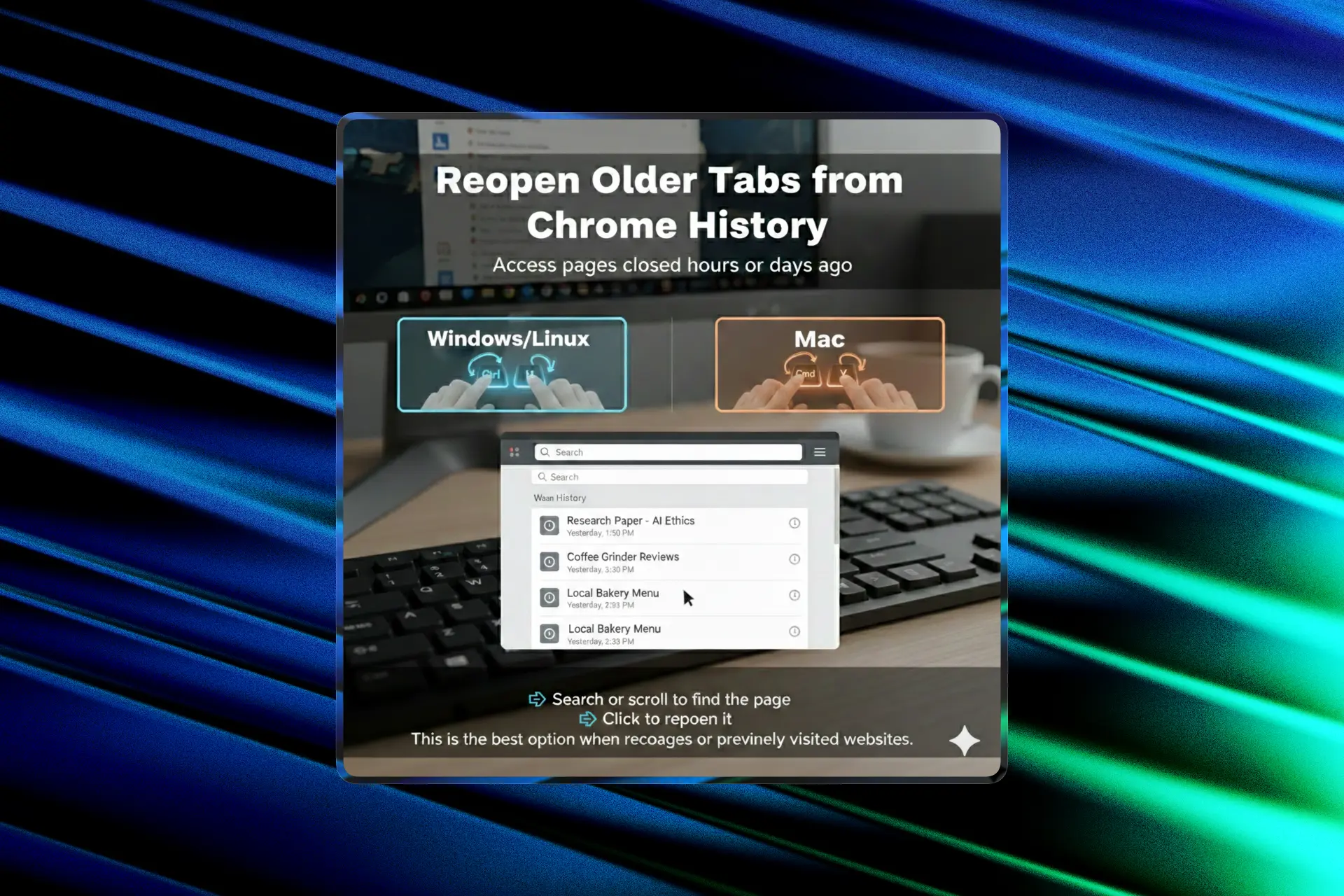
If the tab was closed hours or even days ago, the shortcut may no longer work, but your browsing history can help.
-
Open History:
Ctrl+H(Windows) orCmd+Y(Mac) -
Search or scroll to find the page
-
Click to reopen it
This is the best option when recovering research pages or previously visited websites.
Method 5: Reopen Tabs After a Chrome Crash
When Chrome crashes, it sometimes shows a Restore button on startup. If you see it, click it immediately.
If not:
- Open
chrome://history - Look under recently closed items
- Restore tabs manually
If Chrome fails to restore your session automatically, you may need deeper recovery methods. This step-by-step guide explains how to restore browser tabs and tab groups, including recovery options that still work after unexpected browser crashes.
⚠️ Important: Avoid clearing browsing data before attempting recovery, since Chrome relies on stored session information.
Why Reopening Closed Tabs Sometimes Doesn’t Work
Chrome’s built-in recovery tools depend on saved session data. Tabs may not be recoverable if:
- You were browsing in Incognito mode
- Browser history was cleared
- Chrome crashed due to memory exhaustion
- The session data became corrupted
In these situations, standard recovery methods may fail completely. Many power users move toward a cloud-synced tab management approach so browsing sessions remain accessible even after crashes, restarts, or switching devices.
Advanced Solution: Prevent Losing Tabs in the First Place
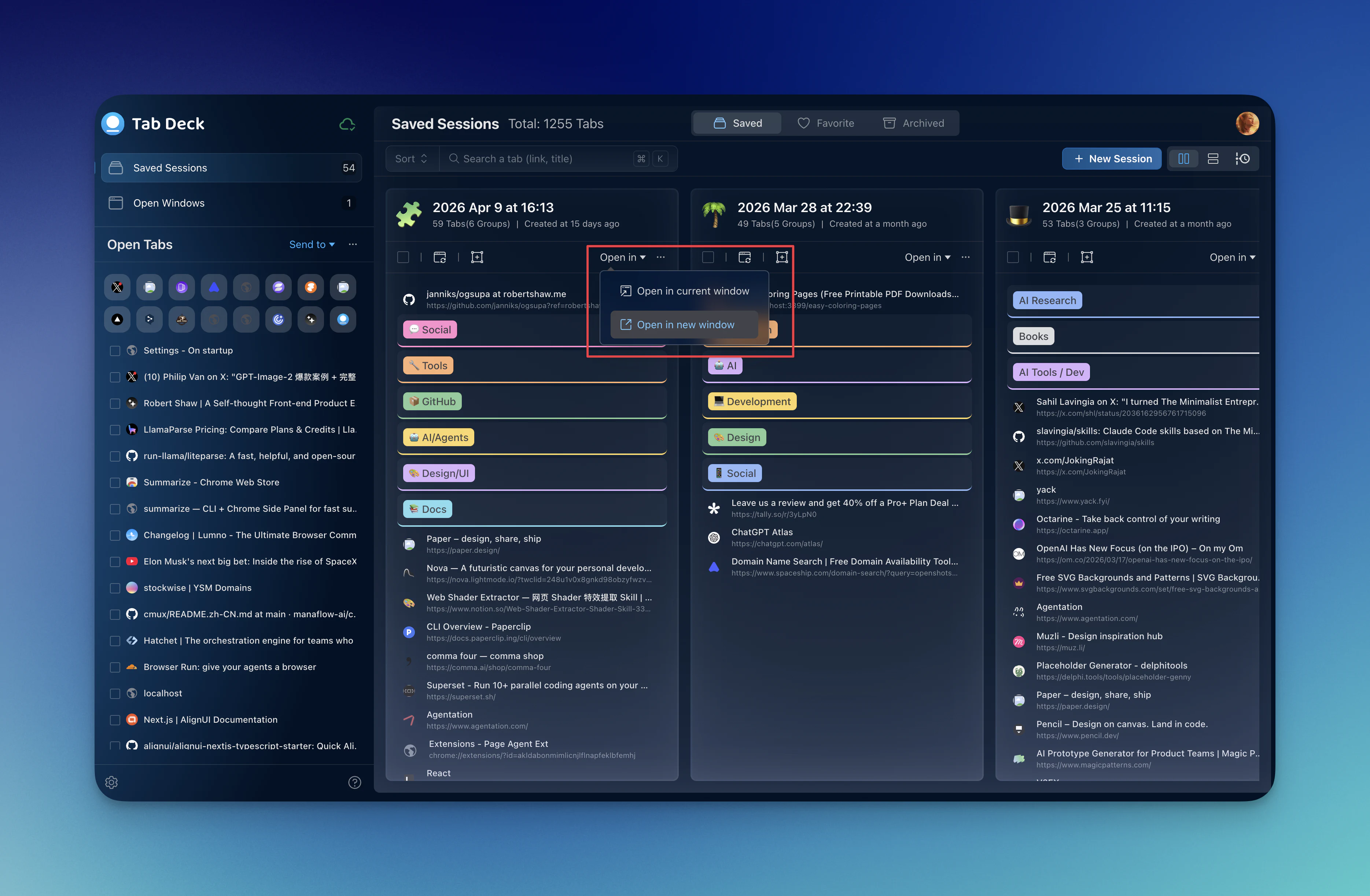
restore chrome tabs with tab deck
Chrome’s native tools focus on recovery, but they don’t always protect you from crashes or lost sessions.
A common cause of browser crashes is running too many active tabs, which consumes large amounts of memory. Reducing memory pressure can make Chrome significantly more stable.
For example, tab-management extensions like Tab Deck allow you to:
- Suspend inactive tabs to free up RAM
- Keep large browsing sessions organized
- Automatically sync tabs and sessions to the cloud
This means that even if Chrome crashes or your computer restarts unexpectedly, your sessions remain saved and can be restored later. While this doesn’t fix website bugs, it helps prevent data loss during heavy browsing or debugging work.
Method 6: Reopen Tabs Across Devices
If you’re signed into Chrome, you can reopen tabs from another device:
- Open History
- Look for Tabs from other devices
- Select the page you want
This works between desktop, laptop, and mobile devices using the same Google account.
Frequently Asked Questions
How do I reopen a closed tab in Chrome?
Use the shortcut Ctrl + Shift + T (Windows) or Cmd + Shift + T (Mac). This instantly restores the most recently closed tab.
Can I reopen multiple closed tabs?
Yes. Press the shortcut repeatedly to reopen tabs in the order they were closed.
Why doesn’t Chrome reopen my closed tab?
The tab may have been opened in Incognito mode, your history may have been cleared, or Chrome may have crashed before saving session data.
Can Chrome restore tabs after a crash?
Sometimes. Chrome may show a restore session prompt on startup, or you can recover tabs through History if session data still exists.
How far back can Chrome restore closed tabs?
Shortcuts typically restore recent tabs only, but older pages can still be reopened through browsing history.
Best Practices to Avoid Losing Tabs Again
- Enable Continue where you left off
- Avoid using Incognito for important sessions
- Keep the number of active tabs manageable
- Use tab suspension or session-sync tools for large workflows
- Regularly bookmark critical pages
Final Thoughts
Learning how to reopen closed tabs in Chrome can save hours of lost work. In most cases, a simple keyboard shortcut restores everything instantly. For more complex situations like crashes or heavy browsing sessions, combining Chrome’s built-in recovery tools with better tab management helps ensure your tabs are never permanently lost again.