
How to Easily Restore Your Browser Tabs and Tab Groups
Reopen Accidentally Closed Tabs
We've all been there - you close a tab by accident, and now it's gone. Fortunately, many browsers have features that allow you to restore accidentally closed tabs. All you have to do is right-click on the tab bar and select "Reopen closed tab". This will re-open the last tab you closed, and you can continue working as if nothing ever happened.
If you accidentally closed a page, you can also follow this guide on how to reopen closed tabs in Chrome using shortcuts and built-in recovery tools.
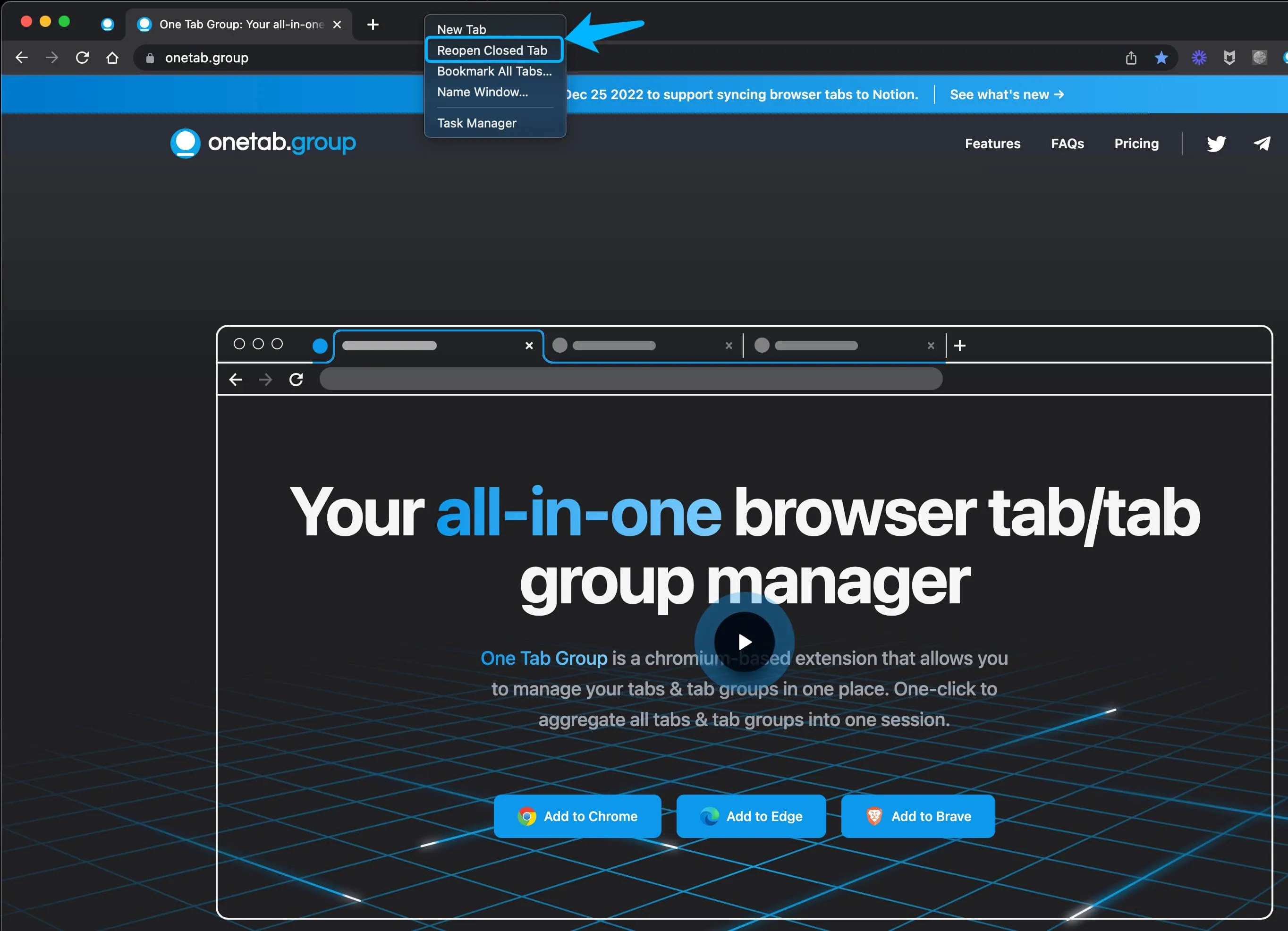
If you have multiple tabs open and you accidentally close one, you can also press the Ctrl + Shift + T keys on your keyboard to open the last tab you closed. This shortcut works even if you have multiple tabs open.
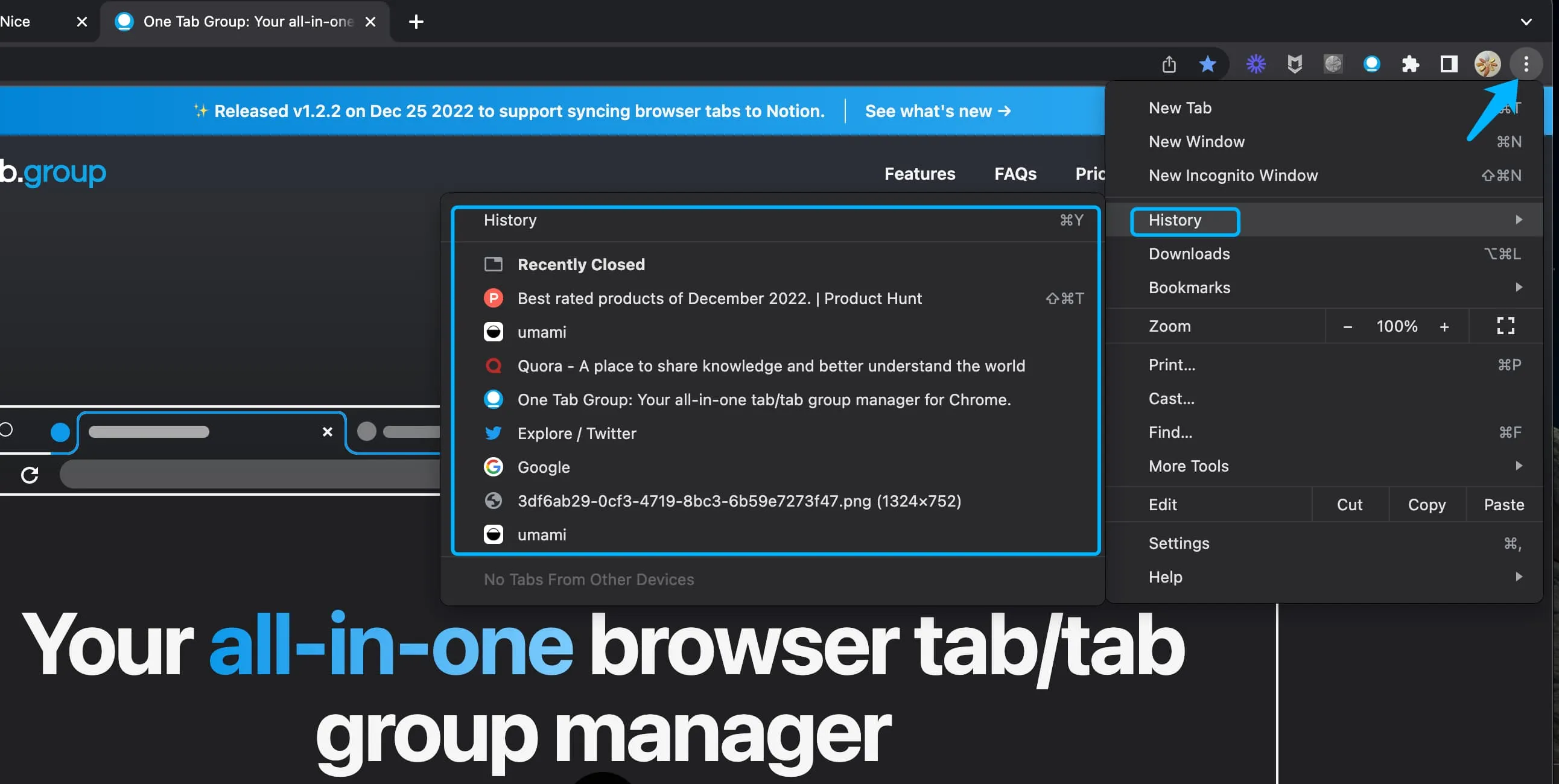
If you need to re-open a tab that you closed a few days ago, you can open your browser history by clicking on the three dots in the upper right corner of the browser window and selecting "History". Here, you can search for the page you're looking for and re-open it.
Reopen Tabs After a Browser Shutdown
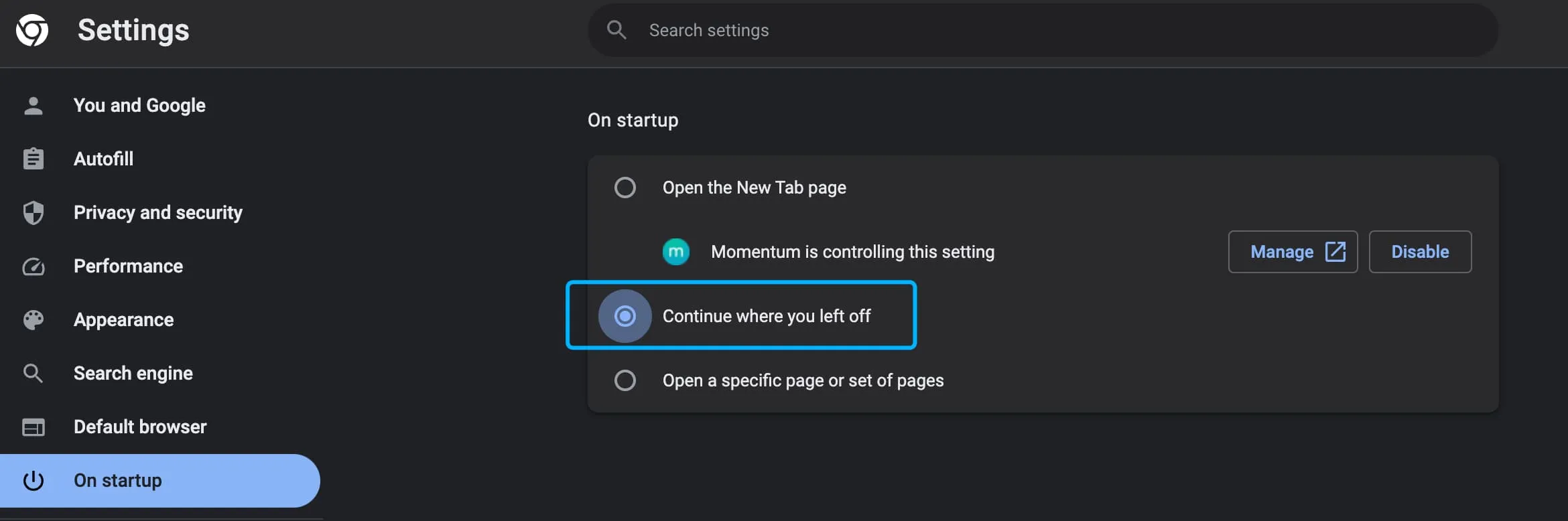
If you have to shut down your browser for some reason, you can easily restore all your open tabs when you start it up again. All you have to do is click on the three dots in the upper right corner of the browser window and select "Settings". Then, select "On start-up" and select "Continue where you left off". This will open all the tabs that were opened the last time you used the browser.
Recover Last Session and Pages When Browser Crashes
If browser crashes and you need to recover your last session and pages, all you have to do is click on the three dots in the upper right corner of the browser window and select "History". Then, select "History" again and select "Reopen closed tabs". This will open all the tabs that were open when the browser crashed.
Access Recently Closed Tabs Without Reopening Them
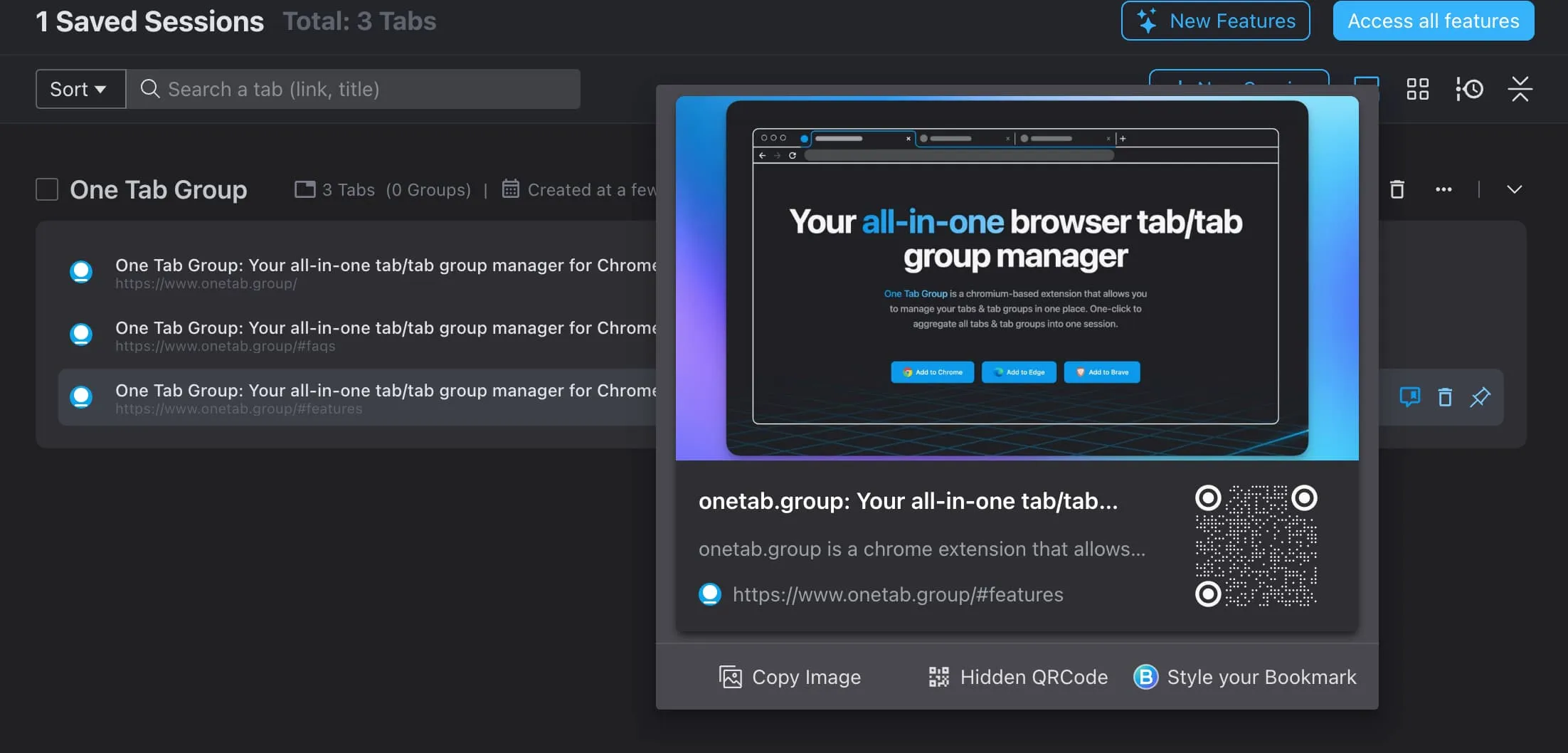
If you need to access the content of recently closed tabs without re-opening them, you can use the browser Tab Manager extension——Tab Deck. This extension allows you to save and restore your tabs and tab groups, hover over the tab you want to view and its contents will be displayed as a visual web bookmark without opening the tab itself. You can preview the website via information like a website's title, description, logo, author, and thumbnails.
Ask AI Agent to restore closed tabs
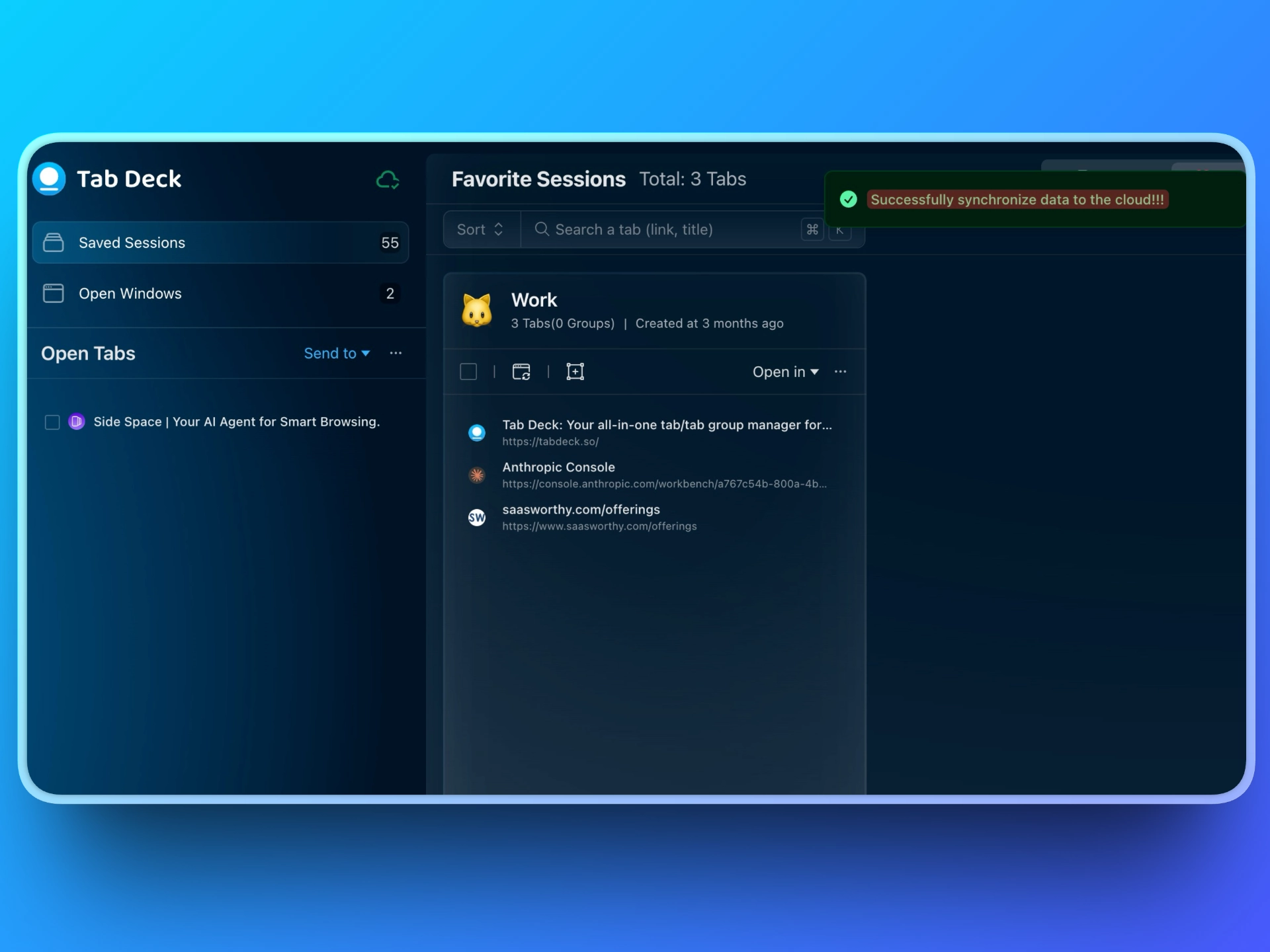
Side Space: Your AI Agent for Smart Browsing. Research, summarize, and organize, less talk, more action. Side Space’s contextual AI works inside your side panel to automate your workflow.
With Side Space, you can ask AI Agent to restore your open tabs with one prompt.
Access tabs and tab groups from other devices
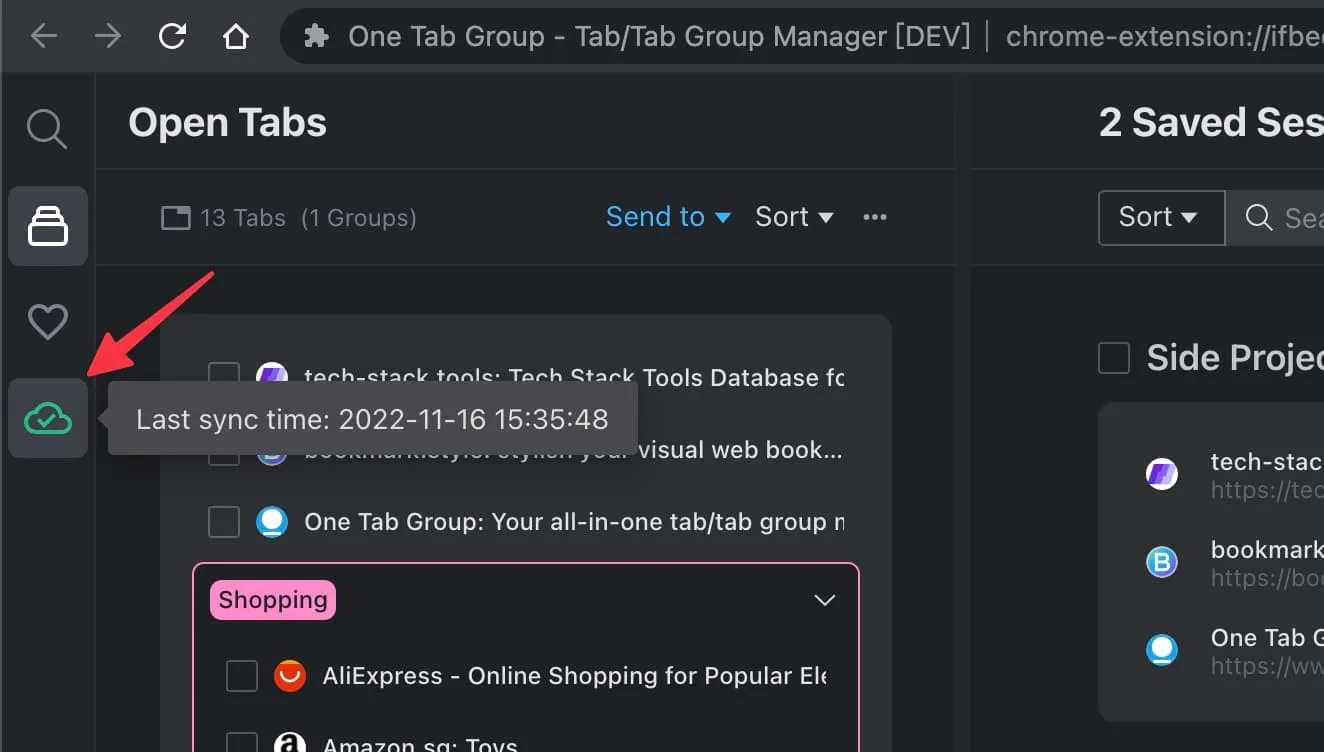
If you have multiple computers or browsers that you use for work or study, and you want to sync your tabs or tab groups across these different devices or browsers, we recommend you this browser extension, Tab Deck. The Cloud synchronization feature allows you to synchronize your tabs and tab groups automatically.
Conclusion
We hope this blog has helped you understand how to easily restore your tabs and tab groups. Many browsers have built-in features and extensions that can help you manage and restore your tabs and tab groups. Whether you need to restore accidentally closed tabs, recover your last session and pages when the browser crashes, or access recently closed tabs without re-opening them, you can use the tools discussed in this blog.
Download and Try Tab Deck - Tab Deck is a useful browser tab manager extension that allows you to easily save and restore tabs and tab groups. It also allows you to access tabs from other devices, view recently closed tabs without re-opening them, and more. It's available now in Chrome, Edge, and Brave.