

How to save your tabs & tab groups into a session?
Tabs are a great way to keep your browser organized, especially if you have a lot of tabs open at once. You can save these tabs into a tab group for an even easier browsing experience.
A tab group is a set of related tabs that you can save together and come back to later. For example, let’s say you’ve opened some different shopping sites in tabs so that you can compare prices on things like clothing or electronics. You could create Tab Deck called “Shopping” with all those tabs in it so that they are all in the same place when you want to go back and browse them again.
Saving your tabs into a session will help ensure that they remain available even if your browser crashes or you end up closing the browser accidentally, which is why we have this guide explaining how to do it!
What is a Session?
The session in Tab Deck is a set of tabs & tab groups, You can save your currently open tabs into a session and restore the session later.
5 Ways To Save Tabs Into a Session
Tab Deck supports several different ways to save your tabs into a session.
1、Save All Tabs With One-click
To save all your open tabs at once, you can click the extension icon, it will save all your tabs and the tabs in the group into a session.
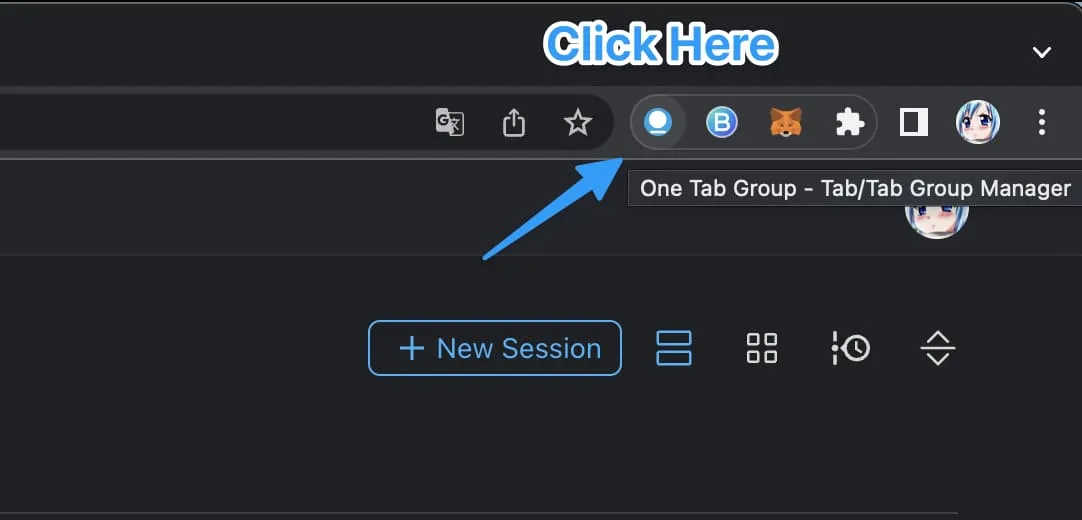
It's a fast way to save your tabs.
2、Save Tabs Using Context Menu
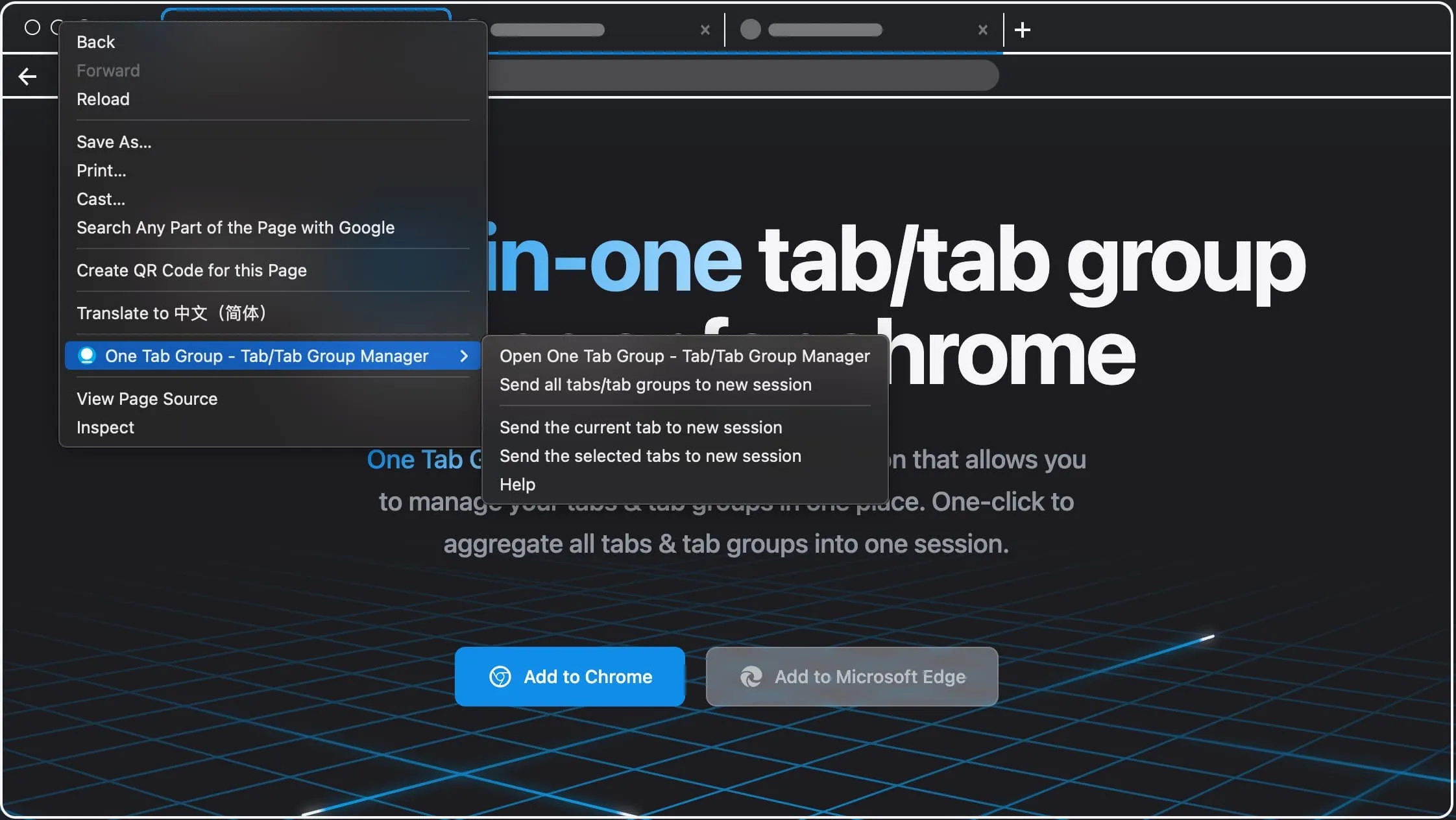
To save the tabs you currently have open, right-click on the blank place in the browser and select Tab Deck menu.
You can choose the following options:
Send all tabs/tab groups to new sessionSend the current tab to new sessionSend the selected tabs to new session
Once you click the menu, it will send the tabs into a new session.
3、Save Tabs by Drag and Drop
The modern web app supports an efficient way to organize the data list. Using the Drag and Drop, and Tab Deck support those too.
You can drag the open tabs or tab group into the session, and some time it will close the tabs by default.
4、Send The Hand-pick Tabs
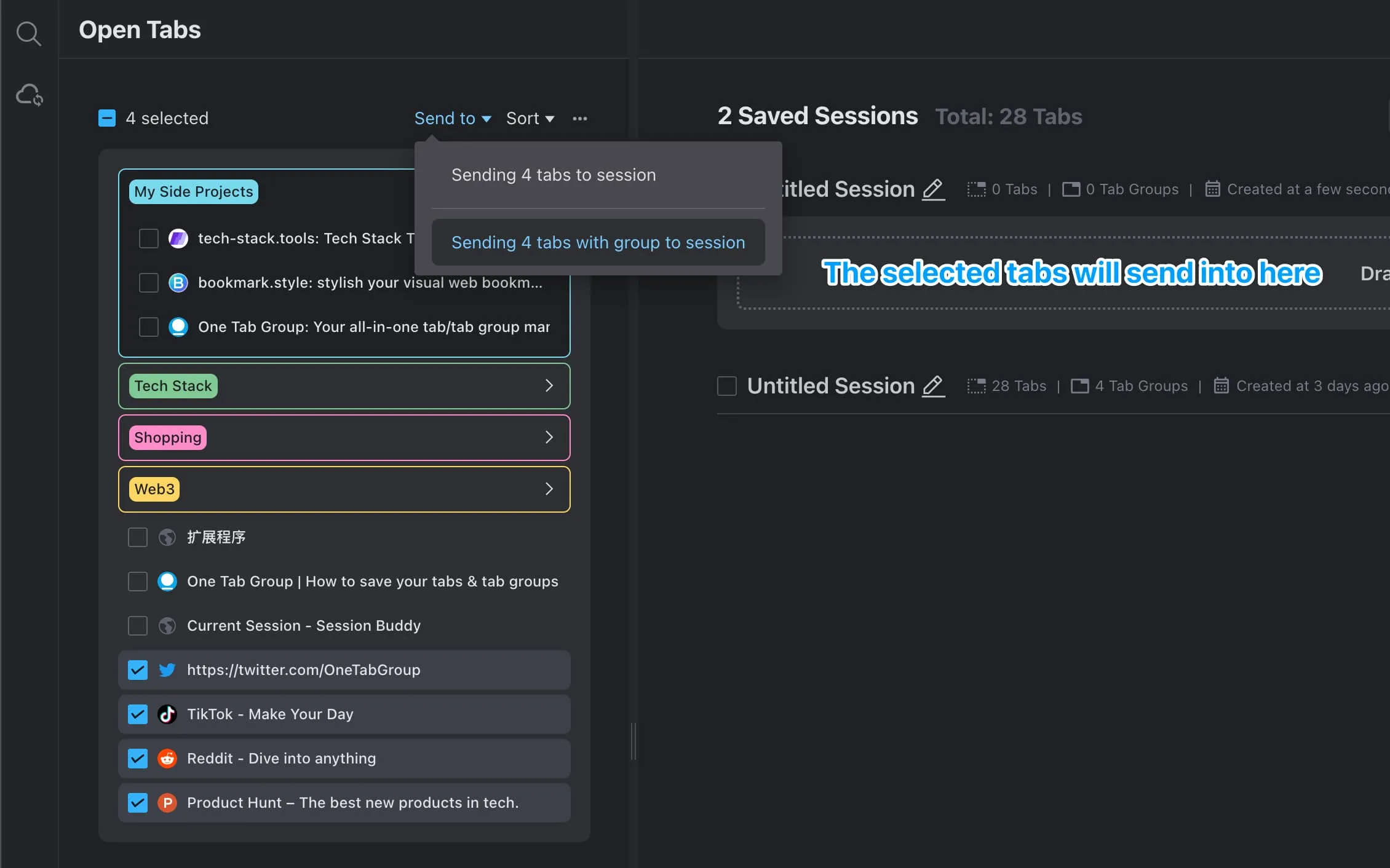
With the release of v1.0.0. Tab Deck Support single/multiselect for open tabs, you can manually select the tabs you want to send to a session.
And send to the latest/new session.
5、Send Selected Tabs Using Shortcuts
Chrome extensions support setting some shortcuts to the extension's features, Tab Deck provides three shortcuts that you can use.
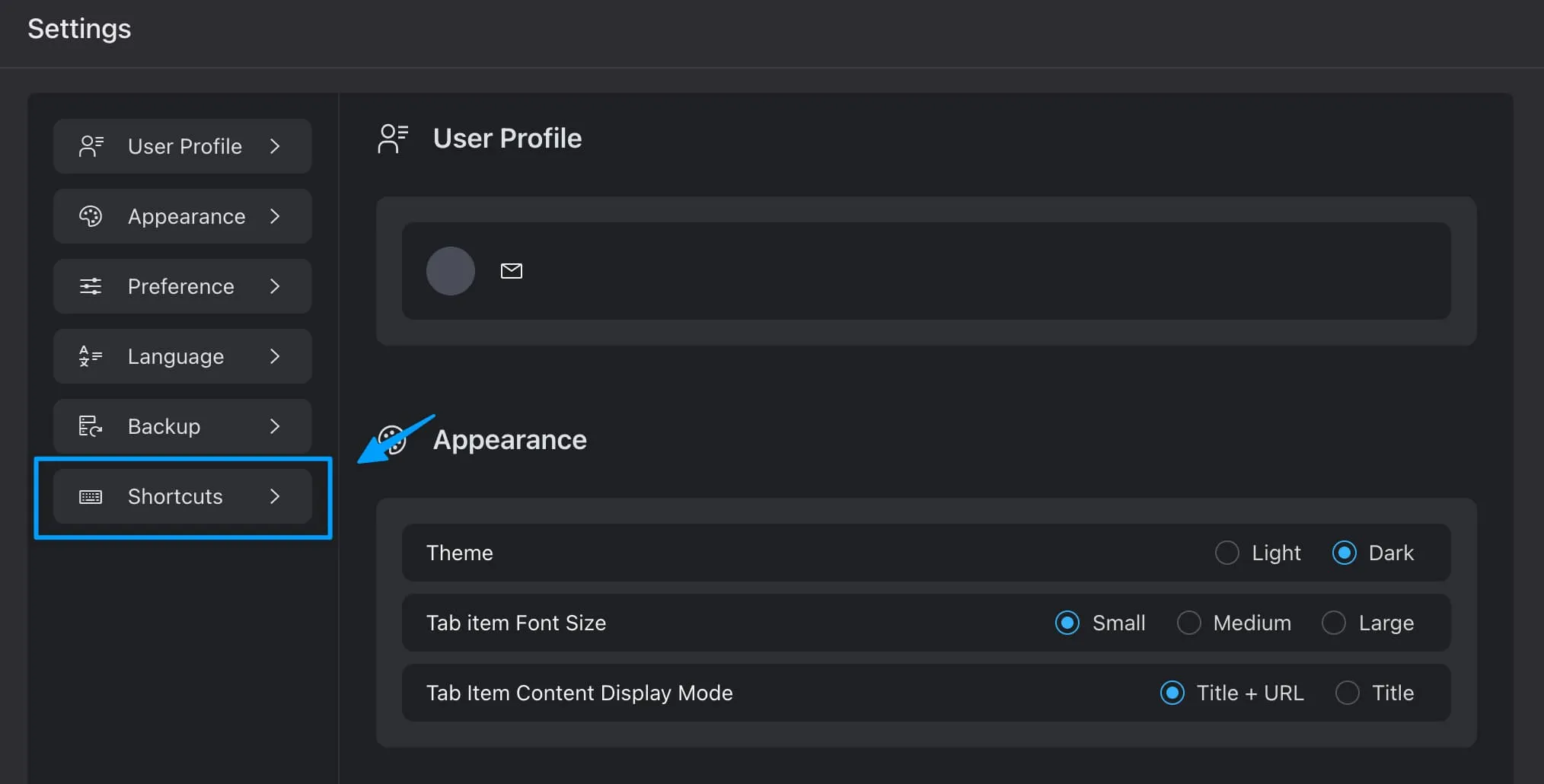
Goto Shortcuts Manager
Click the Shortcuts button on the left of the Settings drawer, and it will navigate to the chrome extension shortcuts manager page.
Customize your own shortcuts
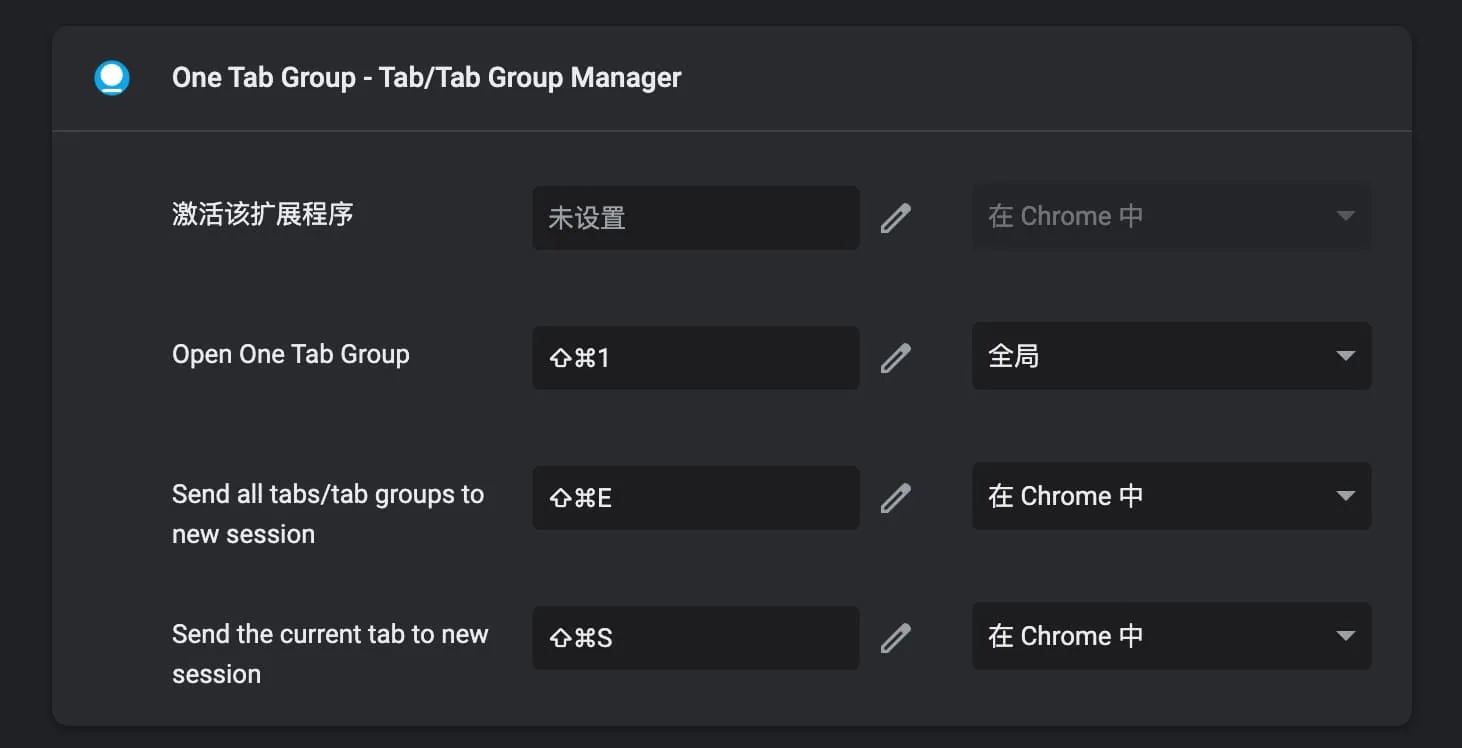
Open Tab Deck- default is ⇧ + ⌘ + 1Send all tabs/tab groups to new session- ⇧ + ⌘ + ESend the current tab to new session- ⇧ + ⌘ + S
You can customize it as you wish, It is also a efficient way to save sessions.
Conclusion
Saving tabs into a session is a really useful way to keep your browser organized and make sure you don’t lose important tabs if your browser crashes.
Tab Deck supports 5 ways to save your tabs to a session. Choose the way that suits your habits and enjoy hoarding tabs.